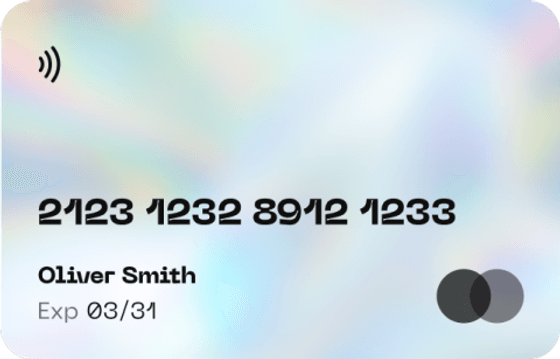
Add Your LinkPay Virtual Card to Apple Pay or Google Pay
A LinkPay virtual Visa or Mastercard can be added to Apple Wallet or Google Pay just like any other card. Tap to pay at any contactless terminal — grocery stores, pharmacies, cafes, transit, anywhere NFC payments are accepted.
Your card is funded with USDT or BTC. You earn 2% cashback on every tap. No bank account, no KYC, no plastic card required.
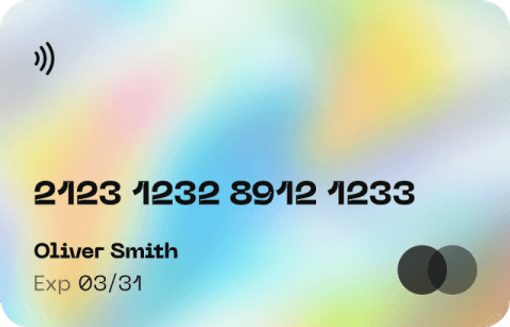
Use Your Crypto-Funded Card With Apple Pay and Google Pay
Once your LinkPay card is in your mobile wallet, you can tap to pay at any contactless terminal. The merchant sees a standard Visa or Mastercard transaction — there's no indication it's crypto-funded or issued by a fintech rather than a bank.
This is one of the simplest ways to spend crypto in physical stores without any conversion or cash-out process. Fund with USDT on TRC20, issue a card, add it to Apple Wallet or Google Pay in under five minutes.
What Makes LinkPay Work Well as a Mobile Wallet Card
Full 3DS Support
Apple Pay and Google Pay both require 3DS for card provisioning. LinkPay delivers OTP via email, Telegram, or push notification — no failed provisioning due to missing 3DS support.
Instant Top-Up With USDT
Running low? Deposit USDT and your balance updates immediately. No waiting for funds to clear, no bank transfer delays.
2% Cashback on All Tap-to-Pay Transactions
Every NFC payment earns 2% cashback — coffee shop, pharmacy, supermarket, transit. Cashback goes directly to your LinkPay balance.
US BINs — Visa and Mastercard
All LinkPay cards use US-based BINs. This maximises compatibility across terminals and reduces the chance of a card being declined based on issuer geography.
No KYC Required
You don't need to verify your identity to issue a LinkPay card or add it to your mobile wallet. Sign up, fund, provision — done.
Unlimited Cards
Want a dedicated card in Apple Pay for daily spending and a separate one in Google Pay for subscriptions? Issue both. There's no cap on issuance.
Add your crypto-funded LinkPay card to Apple Pay or Google Pay. Tap to pay anywhere contactless is accepted. Earn 2% cashback on every transaction.
What You Can Pay For With Mobile Wallet + LinkPay
Grocery Stores and Supermarkets
Tap to pay at any major grocery chain or local supermarket that accepts contactless payment.
Cafes, Restaurants, and Bars
Use your LinkPay card at any hospitality venue with an NFC terminal. Earn 2% cashback on every meal and drink.
Transit Systems
London Underground, NYC MTA, Tokyo Metro, and hundreds of transit systems worldwide accept contactless payment directly from your mobile wallet.
Pharmacies and Convenience Stores
Everyday errands — pharmacies, corner stores, gas stations with tap-to-pay terminals — all work seamlessly.
Hotels and Airports
Hotel check-in terminals, airport retail, and lounge payments all support NFC. Your card in Apple Pay or Google Pay handles all of it.
Vending Machines
Any vending machine with the contactless symbol accepts payment from your mobile wallet.
How to Add Your LinkPay Card to Apple Pay
Step 1: Get Your LinkPay Virtual Card
Sign up at linkpay.io, deposit USDT or BTC (minimum $50), and issue a virtual Visa or Mastercard. Card number, expiry, and CVV appear in your dashboard instantly.
Step 2: Open Apple Wallet
On your iPhone, open the Wallet app. Tap the + button in the top right corner.
Step 3: Add a Debit or Credit Card
Select Debit or Credit Card. Enter your LinkPay card number manually or use the camera to capture it. Enter the expiry date and CVV when prompted.
Step 4: Complete 3DS Verification
Apple Pay requires card verification during setup. LinkPay sends a one-time password (OTP) to your registered email, Telegram account, or via push notification. Enter the OTP to complete verification.
Step 5: Card Is Active in Apple Wallet
Double-click the side button, authenticate with Face ID or Touch ID, and tap to pay at any contactless terminal.
How to Add Your LinkPay Card to Google Pay